Move from Microsoft To Do to Obsidian
Obsidian reads Markdown files kept in a folder, the vault. The Markdown export gives you one page per To Do list, with a checkbox per task and the dates written the way the Tasks plugin expects them.
The steps
- On the home page, sign in with Microsoft, tick your lists, choose Obsidian, Notion or Markdown and download the file. One list gives one
.mdfile; several lists give a ZIP. - Unzip it: one page per list, named after the list.
- Drag the pages into your vault folder, or into a
To Dosub-folder. Obsidian shows them straight away. - For the dates and repeats to work, install the community plugin Tasks (Settings → Community plugins → Browse) and enable it. Without it you still have checkboxes and readable text.
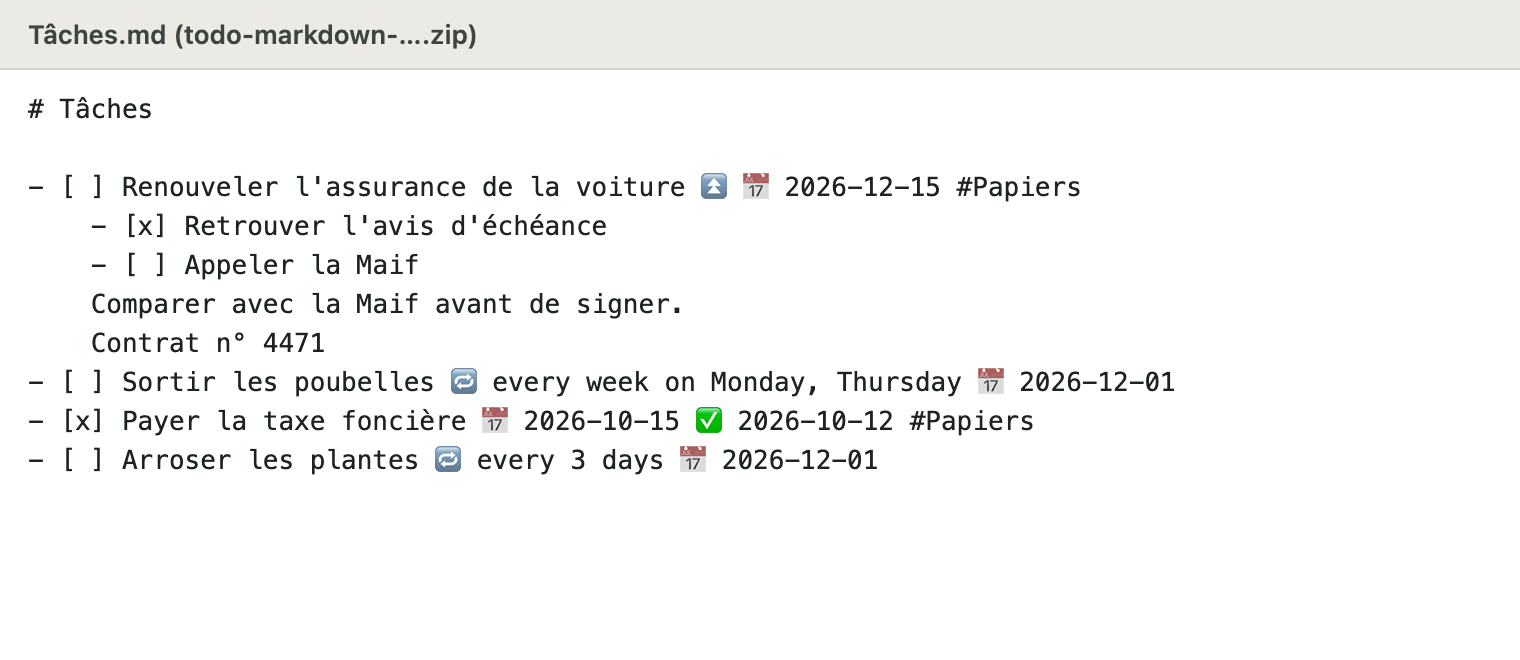
Tâches.md from the example account. ⏫ marks an important task, 📅 the due date, 🔁 the repeat and ✅ the day the task was done.What carries over, and what doesn’t
| In To Do | In Obsidian |
|---|---|
| Repeats | Yes, in the Tasks plugin’s words (“every week on Monday, Thursday”). When you tick the task, Tasks creates the next one. |
| Steps | Yes, as indented checkboxes under the task, ticked or not as in To Do. |
| Reminders | No: Obsidian and Tasks do not ring. The due date stays; the reminder time is lost. |
| Attachments | No: Microsoft does not hand them over. Save them from To Do before it closes. |
| Notes, links | Yes, as text under the task; links stay clickable. |
| Importance, categories | Yes: ⏫ for an important task, a #Papiers tag per category. |
| Completed tasks | Yes, ticked, with the day they were done. |
The 📅, 🔁, ⏫ and ✅ signs are the Tasks plugin’s emoji format, from its documentation read on 27 November 2026.
Other destinations
- Todoist
One CSV per list.
- Notion
Pages or a database.
- TickTick
What works today.
- Spreadsheet
One row per task.
Last checked: